


Best Local AI Desktop Tools in 2026 (Ollama, LM Studio & More)
 Khaled Hawwas
Running AI locally is no longer a niche experiment—it is now a practical way to get ChatGPT‑style assistance with full control over your data. Instead of sending prompts to remote servers, local AI helper tools let you host models like Llama, Qwen, and Mistral directly on your machine with friendly UIs and APIs.
This guide walks through the most popular local AI desktop tools in 2026 (Ollama, LM Studio, GPT4All, text‑generation‑webui, LocalAI, Jan) and explains which one fits different developer workflows.
Why use a local AI helper?
Running models locally gives you three major advantages.
-
Privacy and control – Prompts and documents stay on your hardware, which is critical when you are dealing with proprietary code, internal docs, or sensitive crawl data.
-
Predictable costs – Once the model is downloaded, inference is “free” aside from electricity and hardware wear, unlike per‑token API billing.
-
Low latency and offline use – Local inference avoids network hops, and some tools continue working even when your internet connection drops.
Modern tools also hide a lot of complexity: they handle downloading, quantization, and hardware detection so you do not have to fight with llama.cpp flags on day one.
Top local AI tools in 2026
Below is a quick overview of the main desktop‑friendly options.
Quick comparison table
1. Ollama – the fastest path to “it just works”
Ollama is often the first stop for developers who want to run LLMs locally without diving into low‑level tooling. It gives you a simple installer plus one‑line commands to pull and run models like Llama 3, DeepSeek, Phi‑3, and many newer community favorites.
Key highlights:
-
Supports dozens of optimized models with sensible defaults.
-
Cross‑platform on Windows, macOS, and Linux.
-
Exposes an OpenAI‑compatible HTTP API so you can plug it into existing tools and agents.
Basic usage looks like this:
bash
# Install Ollama (after downloading from ollama.com) # Pull a model ollama pull llama3 # Chat with the model ollama run llama3 # Start an OpenAI-compatible API server ollama serve
For something like Crawleo, you can point your crawler or analysis pipeline to Ollama’s local endpoint instead of a cloud LLM, keeping all fetched data on your infrastructure.
2. LM Studio – the polished GUI and power‑user choice
LM Studio focuses on giving you a rich desktop interface for discovering, downloading, and experimenting with models, while still exposing a built‑in API server for integration. It has become a favorite among developers who want both a good UX and deep control over inference parameters.
Notable features:
-
Excellent GUI for model discovery, benchmarking, and chat.
-
Built‑in server mode, so you can call it like an OpenAI endpoint from your apps.
-
Strong support for recent models and quantizations, with clear hardware recommendations.
Because LM Studio surfaces tokens‑per‑second, memory usage, and temperature/top‑p controls, it is a solid choice when you are tuning a model that will later run in a production service or crawler backend.
3. GPT4All – beginner‑friendly desktop AI
GPT4All ships as a straightforward desktop application that bundles pre‑configured models and a chat UI, targeting users who want local AI without touching the command line. It is particularly popular on Windows, where the installer makes setup nearly as simple as installing any other desktop program.
Core strengths:
-
Click‑to‑install experience with a curated model list.
-
Built‑in local RAG to chat with your own documents.
-
Lower resource requirements and good documentation for newcomers.
You can drag‑and‑drop PDFs or text files into GPT4All, then ask questions over your local knowledge base—useful for crawling reports, content exports, and internal specifications.
4. text‑generation‑webui – maximum flexibility for tinkerers
text‑generation‑webui is a web‑based interface that runs locally and wraps multiple backends, including llama.cpp, Transformers, and others. It is a favorite in the enthusiast community because of its extension ecosystem and the ability to run many types of models from one dashboard.
Why you might pick it:
-
Plugin system for tools, character cards, and alternative sampling methods.
-
Compatible with a wide range of models and quantization formats.
-
Good choice when you want to experiment with prompts, agents, or multi‑model setups.
The trade‑off is that setup can be a bit more involved than “download and click,” but in return you get very fine‑grained control over your local AI stack.
5. LocalAI – self‑hosted OpenAI‑style backend
LocalAI is an open‑source project that aims to be a drop‑in OpenAI alternative you run on your own hardware. Instead of a shiny GUI, it focuses on being a developer‑friendly API server that can load models for text, images, and audio locally.
Key characteristics:
-
OpenAI‑compatible REST API, making migrations from cloud APIs much easier.
-
Supports multiple model families and modalities (LLMs, image generation, audio) on consumer hardware.
-
Plays nicely with Docker and Kubernetes for on‑prem deployments.
If you are building services like Crawleo that already have their own UI and orchestration, LocalAI can sit behind the scenes as your local inference layer.
6. Jan – “offline ChatGPT” with plugins
Jan (from Jan.ai) is positioned as a fully offline ChatGPT‑style experience, powered by a local Cortex engine that can run popular LLMs like Llama, Gemma, Mistral, and Qwen. It includes both a chat interface and an extensible plugin system, plus an optional OpenAI‑compatible API server.
What stands out:
-
Desktop UI that feels familiar if you are used to hosted chatbots.
-
Plugin system to extend behavior with tools and workflows.
-
Ability to download and manage models directly from within the app.
Jan is a good fit if you want a “personal AI” that lives entirely on your machine but still offers integrations and automation hooks.
How to choose the right local AI helper
When picking a local tool, focus on how you plan to use it rather than just the model list.
-
If you want the simplest way to run popular models and call them from code, start with Ollama.
-
If you care about GUI ergonomics, benchmarking, and an API in one package, choose LM Studio.
-
If you are new to local AI or on Windows and mostly need chat + documents, GPT4All is a great entry point.
-
If you love tweaking and extensions, or want one interface for many backends, go with text‑generation‑webui.
-
If you are building a backend service or agent platform and just need a local OpenAI‑style API, LocalAI is often the cleanest match.
-
If you want an offline ChatGPT vibe with plugins and a local API, try Jan.
Getting started: a minimal dev‑friendly stack
For a typical developer workstation or small server, a practical starting stack could look like this.
-
Use Ollama or LM Studio to quickly download and test different models on your hardware.
-
Standardize on one OpenAI‑compatible endpoint (Ollama, LM Studio’s server, or LocalAI) for your applications and agents.
-
For document‑heavy tasks, keep GPT4All or Jan installed as a personal knowledge assistant for local PDFs and exports.
From there, you can plug these tools into Crawleo or any other system that needs safe, fast, and private AI helpers on top of local or crawled data.
What is the main thing you want a local AI helper to do for you right now—coding assistance, document/chat workflows, or powering APIs for your own apps?
Related Posts
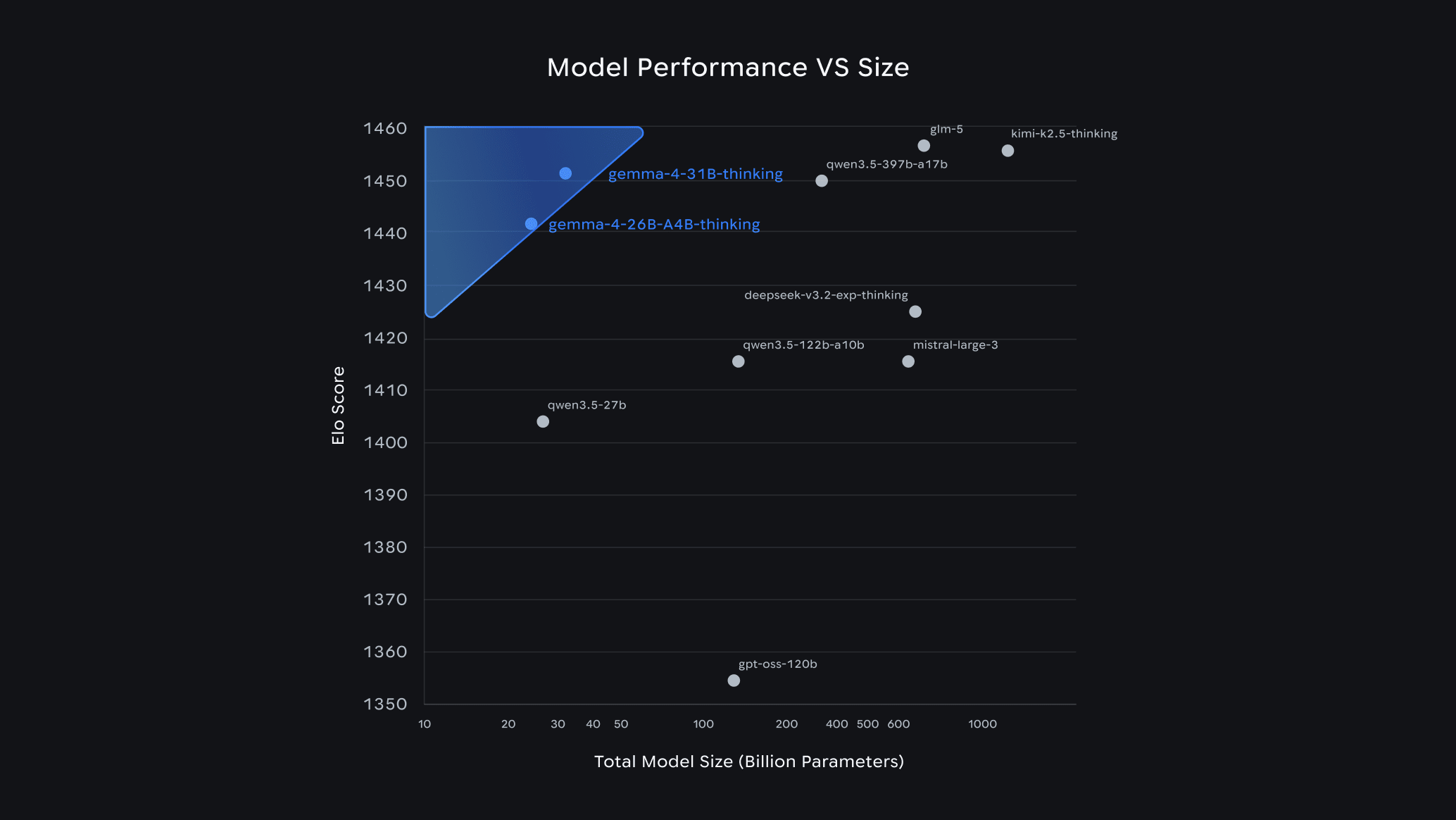
Gemma 4 Guide: How to Choose the Right Model & Run It Locally with Ollama
Google's Gemma 4 is one of the most capable open-source AI model families available today — and it runs completely free on your own hardware. In this guide, we break down each model variant, help you pick the right one for your setup, and walk you through a quick-start installation with Ollama.
LangChain v0.3 Tutorial & Migration Guide for 2026
Learn what’s new in LangChain v0.3 and how to migrate: Runnables, new agents, tools, middleware, MCP, and testing patterns for modern AI agents in Python.